Troubleshooting guide
This guide gives a method for finding the cause of a problem in Overseer. It covers where to look first, what each place tells you, and how to narrow a fault down to one computer, one client or one item.
Read before you change anything
Overseer records each piece of work it does: what it checked, what it ran and what the computer reported afterwards. That record is the quickest route to a cause, and it is easy to lose sight of once you start reinstalling and re-running things.
Look in this order: the session, its actions, the log of the action that failed, the computer's page, and then System Status. Each step widens the view. Stop as soon as one of them explains what you see.
Start with the session
A maintenance session is one complete ordered pass over one computer. Open Sessions, find the session and press View.
- Outcome. A finished session reads Passed, Partial passed or Failed. A pending session has not failed. It is waiting, usually for a computer that is offline or for a preflight condition to clear.
- Stage. A session runs Detection, which is read-only, and then Execution. Note which stage the trouble appears in.
- Actions. Each maintenance action is one piece of work on one item. Find the first action that did not end as Compliant. Later failures often follow from it.
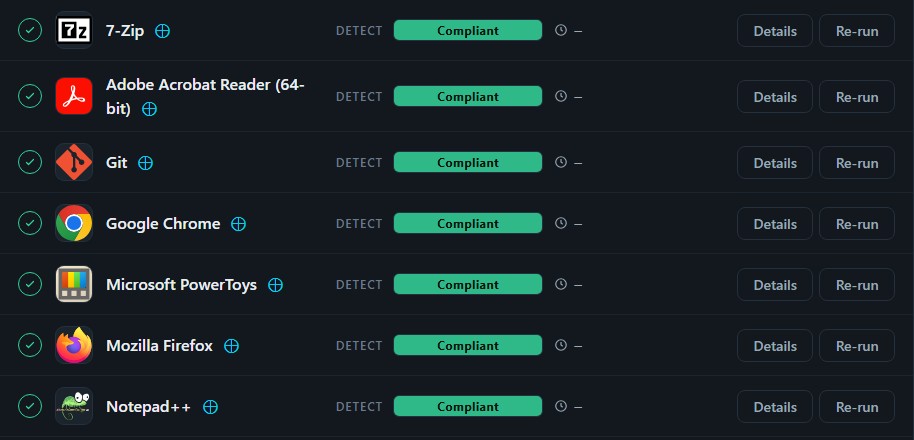
Where an action stops tells you what kind of fault it is:
| Where it stops | What it suggests |
|---|---|
| During Detection | Overseer cannot read the computer: the connection, PowerShell or the item's check |
| During Execution | The installer or script itself failed |
| At the check after the action | The work ran, but the computer does not show the result |
Then read the action's log. It holds the script output, and for software the installer's exit code and message.
Then the computer
Open the computer from Computers. Check whether it is online, which client it belongs to and which tags it carries, because tags and client decide which deployments reach it. Look at its recent sessions. One failed session among many that passed is a different problem from a computer that has never completed one.
Then System Status
Under Show more, open System Status. It reports the health of Overseer itself. If something is unhealthy there, the cause is not on the computer, and work on the computer does not fix it. Check Integrations in the same menu when the problem involves computers or clients that come from another tool.
Narrow it down
Four comparisons place most faults.
- One computer or many. A single computer points to that computer: its disk, its clock, its network or its copy of the agent.
- One client or every client. A whole client points to something the client's computers share, such as a firewall, a DNS filter or a security software policy.
- One item or every item. One failing item points to its script or installer. Every item failing points to the agent, the connection or PowerShell.
- Before and after. Find when it last worked, then list what changed since: a new deployment, an edited script, a security policy, an agent update.
Test one change at a time. Deployment detection reads a computer without changing it, so it is a safe way to check whether a fix has taken. Re-run repeats a session. To test a deployment, target a single computer before you widen it.
When scripts cannot run at all
A computer that stays waiting to be identified, or fails every action at the start, usually cannot run scripts. Three causes account for most cases:
- 1Inspection of encrypted traffic is breaking the agent's connection.
- 2Security software is blocking PowerShell or the agent's processes.
- 3The computer's clock is wrong, so a secure connection cannot be made.
The agent's log on the computer helps to tell them apart. A connection that closes straight after it opens suggests inspection. A script that starts and then reports nothing suggests security software. An address that cannot be found suggests DNS filtering. Security software exclusions covers the remedy for each.
Two further causes are worth ruling out. PowerShell that is very slow to start on a computer can exceed the time Overseer allows. A policy from your directory that forbids script execution stops scripts before they begin.
If Overseer asks you to decide whether a newly seen agent belongs to an existing computer, answer that it replaces the existing record, unless the computer was cloned. For a clone, keep both.
Record what you find
Write down what you were doing, what happened instead, the exact error text and when the problem began. Add the Windows version, the security software in use and the session concerned. A colleague who takes over can then start from your last step.
For a fault that leaves no trace in Overseer, record a trace with Windows Performance Recorder while you reproduce the problem. It shows what else on the computer was active at that moment.