Common workflows
This page sets out the three jobs most people do first in Overseer - onboarding a new computer, creating and testing a deployment, and finding out why a deployment failed.
What these workflows cover
Most day-to-day work in Overseer is one of three jobs. Each one touches several screens, and the detail for each screen lives in its own article. This page puts the steps in one place, in order, so you can finish the job without assembling it from several pages.
Each workflow assumes you already have a role that allows the work. People see and do only what their role allows.
Onboarding a new computer
Onboarding brings a new computer into Overseer: it gets the agent, is assigned to its client and receives its first maintenance session.
Before you start, have the computer itself, a way to install the agent on it, and the name of the client and of the person who is to use it.
- 1Install the agent. For a computer that is already running, press Install agent and run the installer on it. For a computer still at Windows setup, use your prepared USB drive.
- 2Find the computer. When the agent connects, the computer appears in Overseer as a new computer.
- 3Assign the client. Choose the tenant the computer belongs to.
- 4Assign the primary user. This is optional but recommended. Deployments aimed at a person depend on it.
- 5Start onboarding. The computer's first maintenance session begins. Deployments with Onboarding enforcement run once, at this point.
- 6Watch the session. Open Sessions and follow the onboarding session. Deal with anything it reports.
- 7Check the result. Confirm that every item is Compliant, that the computer is listed under the right client, and that the things the person needs open and work.
Onboarding can also be set to start on its own as soon as the agent first connects. Start it by hand when you want to add details first, such as the primary user.
Creating and testing a deployment
A deployment is a standing declaration, so a mistake in one repeats on every computer it targets. Prove it on one computer first.
Before you start, know which computers or people the deployment is for, and have the software or task ready in the library.
- 1Create the deployment. Open Deployments and press New deployment.
- 2Choose the item. Pick a piece of software or a task from the library.
- 3Set the state. For software, choose the version and a desired state: Installed, Updated if Found, Uninstalled or Ignored. For a task, fill in the settings the task asks for.
- 4Set the enforcement. Choose Required, Onboarding or Ad hoc.
- 5Aim it at a test computer. Set the target to a single computer you can afford to change, and save.
- 6Run it. Open the test computer and press Run maintenance. Follow the session.
- 7Refine it. If an action fails, read its log, change the deployment or its scripts, and run the session again. Repeat until the session passes.
- 8Widen the target. Change the target to the tag, client or clients the deployment is really for.
- 9Let it apply. Run maintenance on those computers, or leave it for the next scheduled session.
Finding out why a deployment failed
A failed action always leaves a record. The work is to read it, find the cause and prove the fix.
Before you start, you need to be able to read session logs and to edit the deployment.
A session lists its actions one row to an item, each with its stage and its result. That list is where the search starts.
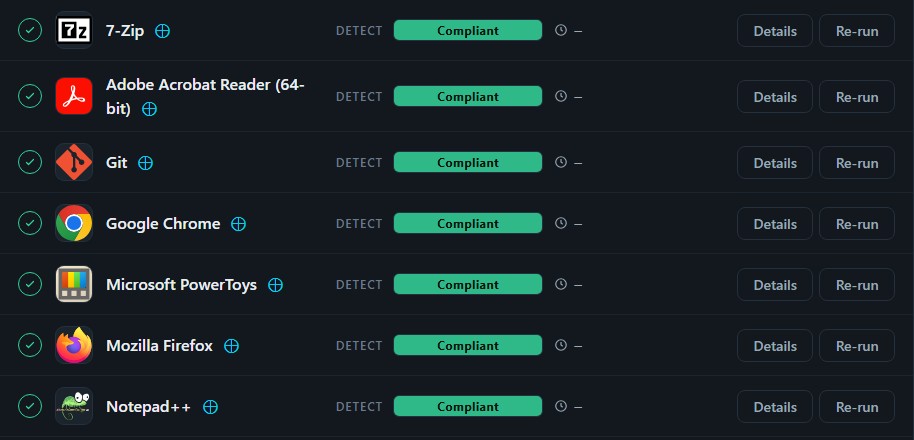
- 1Find the failure. Open Sessions, find the failed session and press View. Find the action that failed, press Details and note the error it recorded.
- 2Rule out the common causes. Check that the computer has a working network connection, that your security software is not blocking the installer, that there is enough disk space and the right permissions, and that anything the software depends on is already installed.
- 3Review the deployment. Open the deployment and confirm its settings are right, that its target really includes this computer, and that its scripts contain no errors.
- 4Try it by hand. Connect to the computer and carry out the same action yourself. Note any error or prompt you meet.
- 5Change the deployment. Correct the settings or scripts according to what you found, and save.
- 6Test the fix. Open the session and press Re-run, or press Run maintenance on the computer. Follow the session and read the log to confirm the fault has gone.
- 7Write it down. If the cause is likely to come back, record it where your team can find it, and update any scripts or procedures that share the fault.