Creating and managing deployments
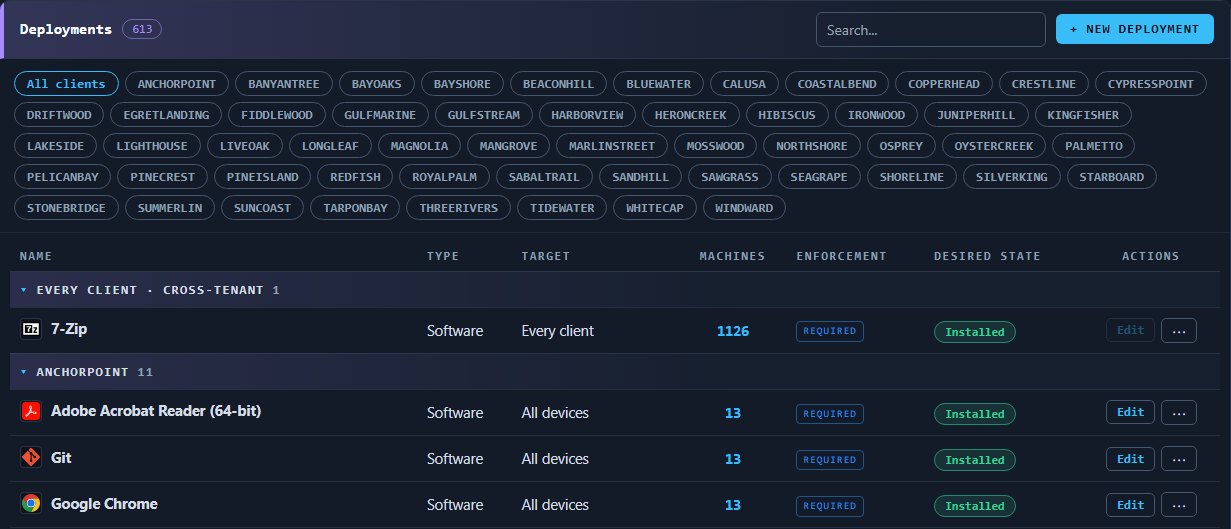
A deployment is a standing declaration that a piece of software or a task should be in a given state on a set of computers. This page covers creating one, making exceptions, and changing or retiring deployments later.
What a deployment is
A deployment says "this should be true here". It is not a one-off job. It stays in force until you change it, and Overseer measures every targeted computer against it.
Each deployment has these parts:
- The item. One piece of software or one task from the Library.
- The desired state. What should be true of that item.
- The enforcement. When the deployment applies.
- The target. Which computers it applies to.
Saving a deployment changes nothing on any computer. A deployment is applied when a maintenance session runs, which is one complete ordered pass over one computer. You can save your work freely and review it before any session picks it up.
Creating a deployment
- 1Open Deployments and press New deployment.
- 2Choose the software or the task the deployment is for.
- 3Choose the desired state. For software, also choose the version you want from those the software item offers.
- 4Choose the enforcement.
- 5Choose the target.
- 6Fill in any parameters the item asks for.
- 7Review the deployment and save it.
Desired state
For software there are exactly four choices.
| Desired state | What Overseer does |
|---|---|
| Installed | Installs the software if it is missing and updates it if it is old |
| Updated if Found | Updates the software where it already exists and never installs it fresh |
| Uninstalled | Removes the software if it is present |
| Ignored | Leaves the software alone |
A task deployment is Enforced: the task's check runs and, if it fails, the task corrects it. A task can also be checked without being changed.
Enforcement
- Required. Applies in every maintenance session.
- Onboarding. Applies once, when a computer is first set up.
- Ad hoc. Applies when a person runs it.
Target
A target can be every client, one client, a tag, a single computer or a person. It can also be the computers reported by an integration, or the computers picked out by a filter script. A filter script is a PowerShell script that returns true for each computer that belongs in the target, which lets you aim by any fact you can test for.
Making an exception
When two deployments for the same item reach the same computer, the more specific one is used. That rule is how you make exceptions without bending the standard.
- 1Open the deployment you want an exception to and duplicate it.
- 2Change the desired state on the copy to Ignored.
- 3Narrow the copy's target to the computers that should be left out.
- 4Save the copy.
Changing, pausing and removing
- Find. Search or filter the list on Deployments, then open a deployment to see its details.
- Change. Press Edit, make the change and save. The change applies from the next session.
- Pause. Disable a deployment to stop it applying without losing it. Enable it again when you are ready.
- Remove. Delete a deployment you no longer need. To take software off computers, use an Uninstalled deployment instead.
Offboarding a client
Deployments work in reverse too. When a client leaves, create a deployment with the desired state Uninstalled for each piece of software you want taken off, and aim them all at one tag. Put the tag on the client when the time comes. The same deployments then serve every later offboarding. If your PSA is connected, you can aim them at the clients it reports as leaving in place of the tag.
Ordering with dependencies
Some items only work once another is in place. Place such an item in the end group of the session, as Deployment ordering describes.
Testing before you widen
- 1Create the deployment with a narrow target, such as one test computer.
- 2Open that computer and press Run maintenance.
- 3Read the session and confirm the item is marked Compliant.
- 4Widen the target to the computers you meant it for.
Use a filter script only when the simpler targets cannot say what you mean.
When a deployment does not apply
- Check the target. Confirm the computer matches it, and that no more specific deployment wins.
- Check it is enabled. A disabled deployment is skipped.
- Check the enforcement. An Onboarding deployment does not run in ordinary sessions.
- Check the order. An item that relies on another fails when the other is missing.
- Check the installer. When an install fails, confirm the computer can reach the installer, meets the software's requirements and has no conflicting software. Then try the install by hand on a test computer.