Running a maintenance session
A maintenance session is one complete ordered pass over one computer. This page covers starting a session by hand, on one computer or several, choosing how restarts are handled, and reading what the session did.
What a maintenance session is
Deployments declare what should be true. A maintenance session is where Overseer makes it true on one computer. Nothing you declare reaches a computer until a session runs, so you need at least one software or task deployment in place first.
A session runs in stages.
- Detection. Overseer reads the computer and compares it with the deployments that target it. This stage changes nothing.
- Execution. Overseer acts on each difference. Each piece of work on one item is a maintenance action.
After each action, Overseer reads the computer again. The item is marked Compliant only when that check passes. The session's outcome then reads Passed, Partial passed or Failed.
Preflight scripts run at the start of every session. One of them can hold the session until a condition clears, for example while Windows is in the middle of installing updates.
How a session starts
- On a schedule. A schedule starts recurring sessions for the computers it targets. How often maintenance runs is set there.
- By hand. You start a session yourself, on one computer or on several.
Running a session on one computer
- 1Open Computers and open the computer.
- 2Press Run maintenance.
- 3Choose how restarts are handled. You can suppress restarts, restart only if an item needs it, or always restart.
- 4Start the session.
To see what a session would find without changing anything, press Deployment detection instead. It runs the read-only Detection stage alone.
Running a session on several computers
- 1Open Computers.
- 2Tick the computers you want.
- 3Press Batch actions.
- 4Choose the maintenance session and set its options, including how restarts are handled.
- 5Run it.
Each computer gets its own session. If one of them cannot be reached, its session waits, shown as pending, and resumes when the computer reconnects. It does not fail, and it is not graded from old data.
Reading the result
Open Sessions to see sessions across every client. Filter the list by status, computer, client or date range.
Open a session to see its actions.
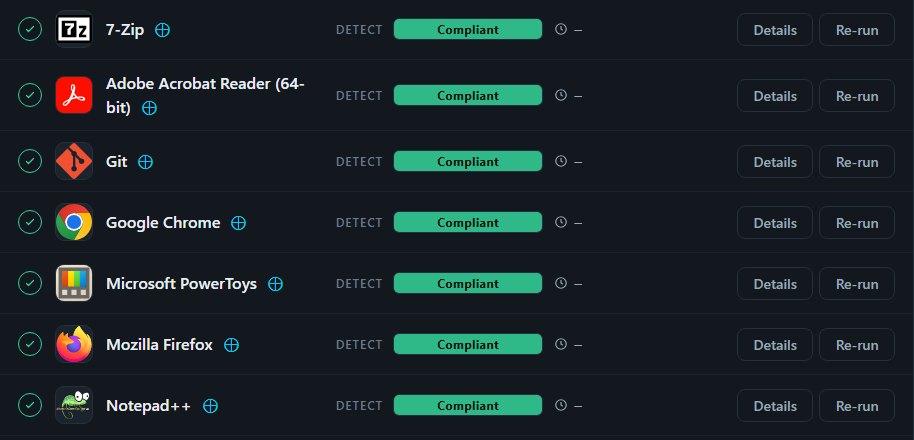
For each session you can read:
- the actions it carried out, in order
- whether each one succeeded
- the log for each action
- when the session ran and how long it took
- the deployments that were involved
Use Details to look closer at an item. Press Re-run to run the session again once you have dealt with whatever stopped it.
Telling people by email
Overseer can email people about maintenance. Outgoing mail and branding must both be set up first. You then turn notification on in one of two places.
- For sessions run by hand. Edit the deployment you are going to run and set its notification options.
- For scheduled sessions. Set the notification options on the schedule.
Good habits
- Stagger scheduled work. Spread maintenance windows so that every computer is not busy at once.
- Test on a few. Run a change on a small group before it reaches everyone.
- Read the results. Review sessions and the Compliance report regularly.
- Warn people. Tell the people using the computers when maintenance happens and what changes.
- Back up first. Make sure important computers have a recent backup before a large update.
When a session does not go as expected
| What you see | What to check |
|---|---|
| A scheduled session does not start | The agent is connected, and a maintenance window is open at the scheduled time |
| A session stays pending | The computer is offline. The session resumes when it reconnects |
| An action fails | The action's log, interference from your security software, the network connection and free disk space |
| A session stops part-way | Whether the person using the computer interrupted it, and whether the deployment is configured correctly |