Creating and managing schedules
A schedule runs detection or maintenance on a recurring basis for the computers it targets. This page covers creating a schedule, writing its timing, limiting it to one client, and removing or rebuilding one.
What a schedule is
Deployments say what should be true. They do not say when Overseer checks. A schedule supplies the when: it starts recurring detection and maintenance for the computers it targets, without anyone pressing a button.
A schedule decides three things:
- When it runs. The day and the time.
- What it applies. Which deployments its sessions cover.
- Whether people are told. Whether notification emails go out for its sessions.
A schedule can run detection only, which reads each computer and changes nothing, or full maintenance, which also acts on what detection finds. A common pattern is to pair the two: detect every day so your reports stay fresh, and run maintenance once a week.
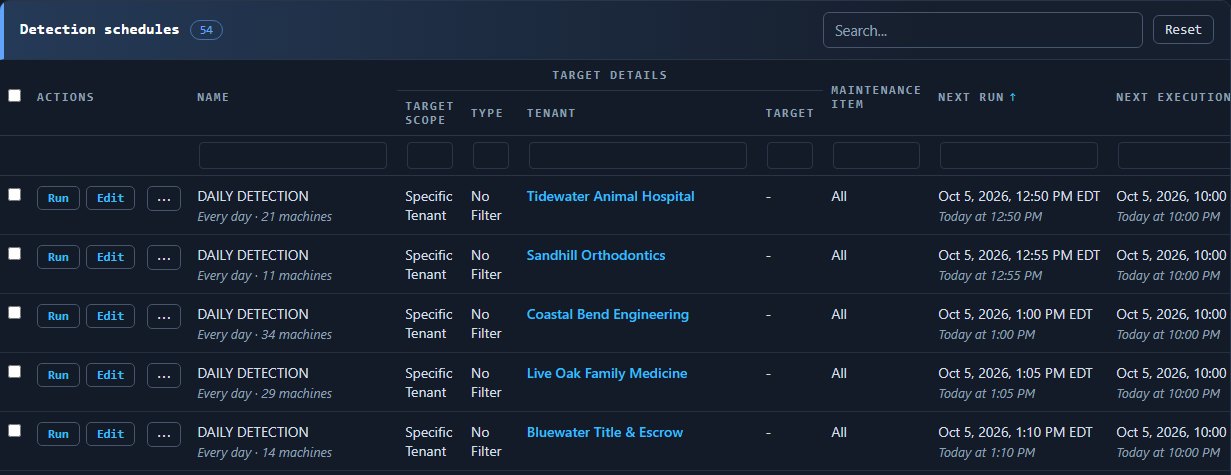
Creating a schedule
- 1Open Schedules and press New schedule.
- 2Choose whether the schedule runs detection only or full maintenance.
- 3Choose the target: the computers the schedule covers.
- 4Enter the timing as a cron expression. The next section explains the format.
- 5Choose which deployments the schedule applies.
- 6Choose whether its sessions send notification emails.
- 7Save the schedule.
Writing the timing
Timing is written as a standard five-field cron expression. There is no seconds field.
| Position | Field | Values |
|---|---|---|
| 1 | Minute | 0 to 59 |
| 2 | Hour | 0 to 23 |
| 3 | Day of the month | 1 to 31 |
| 4 | Month | 1 to 12 |
| 5 | Day of the week | 0 to 6, where 0 is Sunday |
Some examples:
| You want | Expression |
|---|---|
| Every night at half past one | 30 1 * * * |
| Every Saturday at ten in the evening | 0 22 * * 6 |
| Tuesdays and Thursdays at four in the morning | 0 4 * * 2,4 |
| The fifteenth of each month at quarter past three in the morning | 15 3 15 * * |
Times are read in the tenant's time zone where one is set, and in your default time zone otherwise.
What the timing cannot express
A schedule runs at most once a day. The minute and the hour must each be a single fixed number, so the symbols *, ,, / and - are not accepted in those two fields. An expression such as */30 * * * *, meaning every thirty minutes, is rejected.
Patterns that count weeks are also outside what cron can say. "Every other Wednesday" and "every third weekday" have no expression. Choose a fixed day of the week or a fixed day of the month instead.
Scheduling for one client
There are two ways to give a client its own schedule.
- From Schedules. Create the schedule as above and set its target to that client.
- From the tenant. Open the client on Tenants and create the schedule there. It is targeted at that client from the start.
How schedules meet windows and offline computers
Scheduled work respects your maintenance windows, which set when scheduled work may run, and your restart policy, which sets the rules restarts follow. Maintenance windows govern scheduled work only. When a person presses Run maintenance, the session runs immediately whether or not a window is open.
If a computer cannot be reached when its schedule comes round, its session waits, shown as pending, and resumes when the computer reconnects. It does not fail, and it is not graded from old data.
Deleting and rebuilding a schedule
Delete a schedule from Schedules when you no longer need it.
A deleted schedule cannot be restored, but nothing about it is lost. The audit log records who did what, when and on whose authority, and it keeps the deleted schedule's settings.
- 1Open the audit log.
- 2Filter it to schedules.
- 3Find the entry for the deletion and expand it to read the schedule's settings.
- 4Press New schedule and enter those settings again.